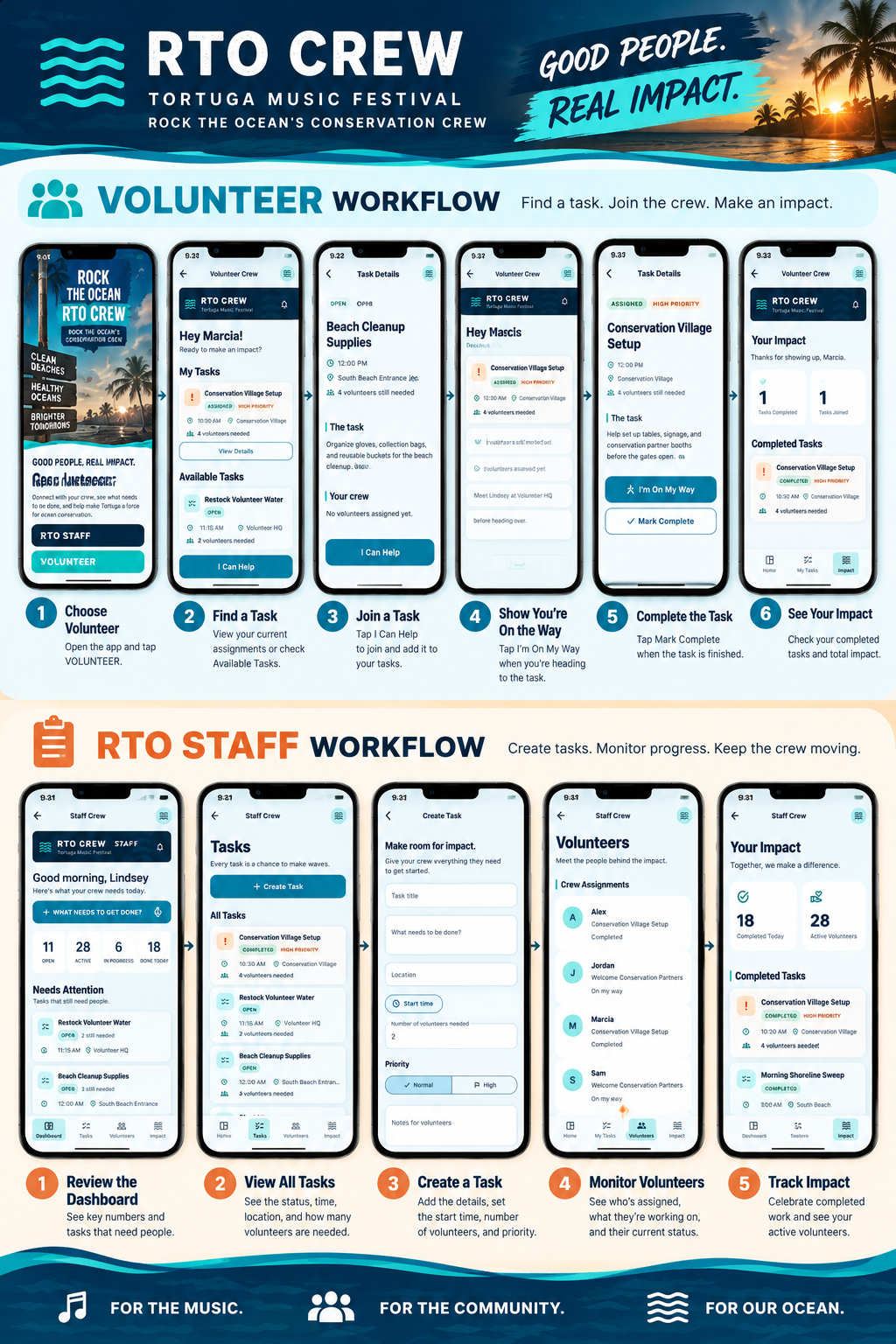
RTO CREW QUICK START GUIDE
Choose the right role to begin
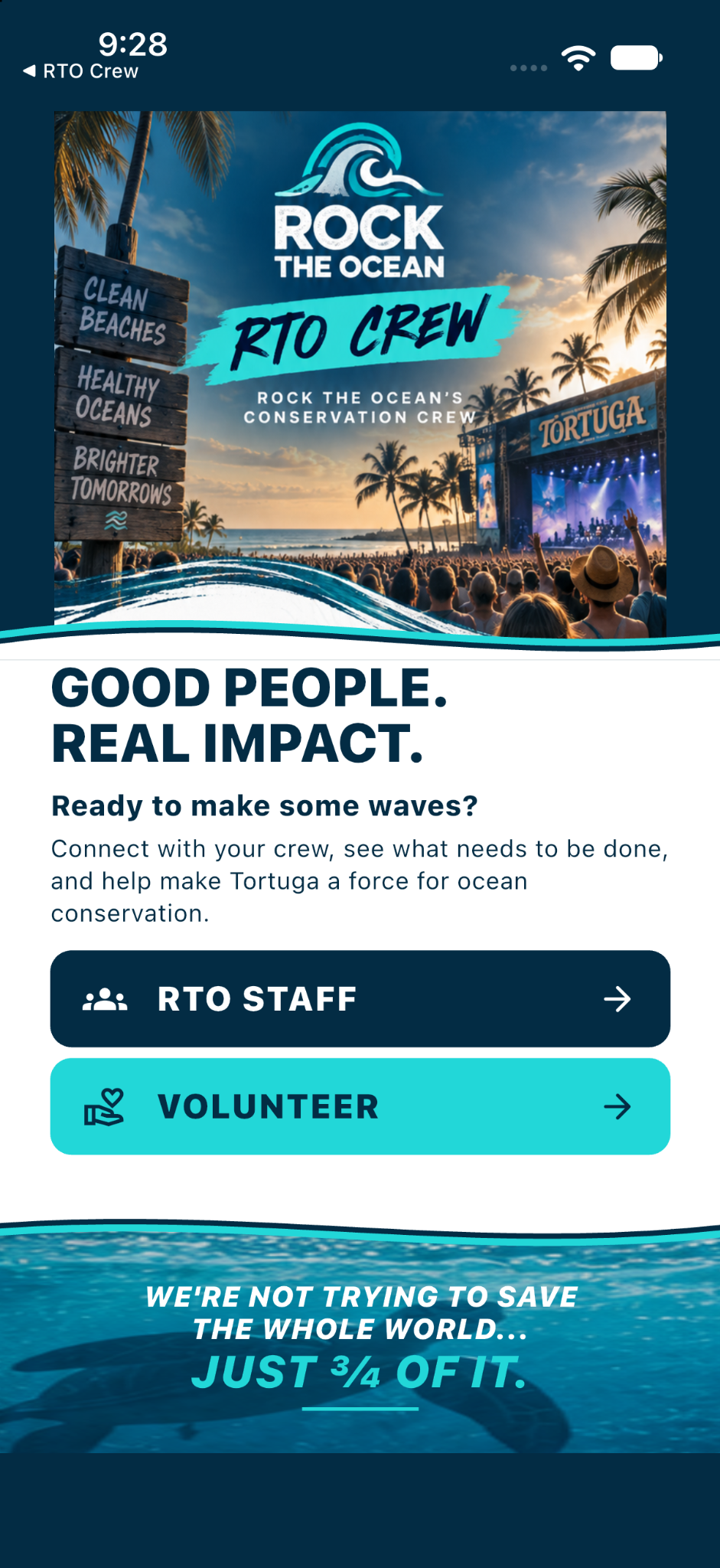
RTO Crew supports both staff leaders and volunteers. Start by choosing the role that matches what you need to do today.
What to do
- Tap RTO Staff if you are creating tasks or monitoring the crew.
- Tap Volunteer if you are joining tasks, checking assignments, or tracking your impact.
- Each role opens a different workflow designed to be quick and easy to use in the field.
Find work. Join the crew. Keep your status current.
VOLUNTEER
Volunteer Home
See your tasks at a glance
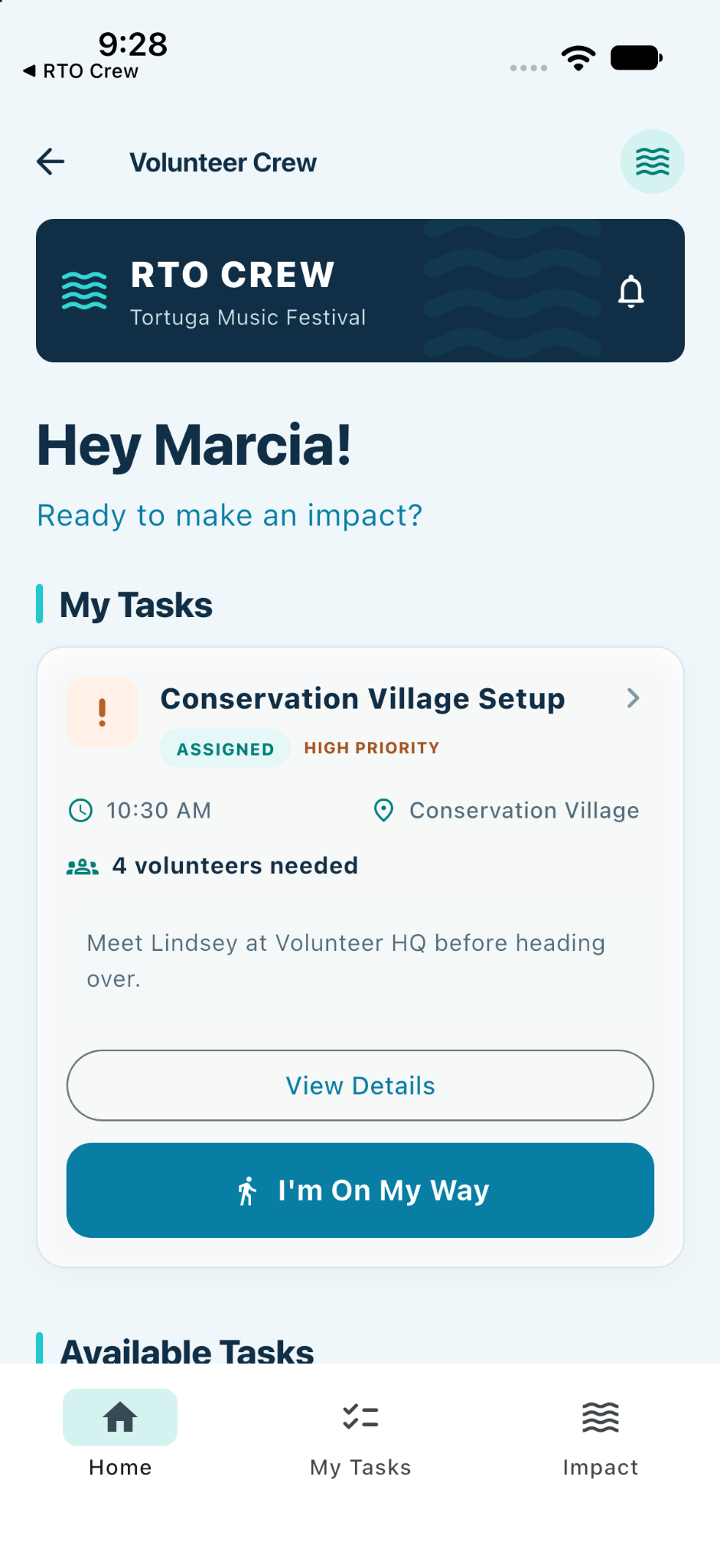
The Volunteer Home screen gives you a quick view of what is assigned to you and what else is available today.
What to do
- Review My Tasks first to see work already assigned to you.
- Scroll to Available Tasks to find other ways you can help.
- Use the bottom tabs to move between Home, My Tasks, and Impact.
VOLUNTEER
Available Tasks
Join an open task quickly
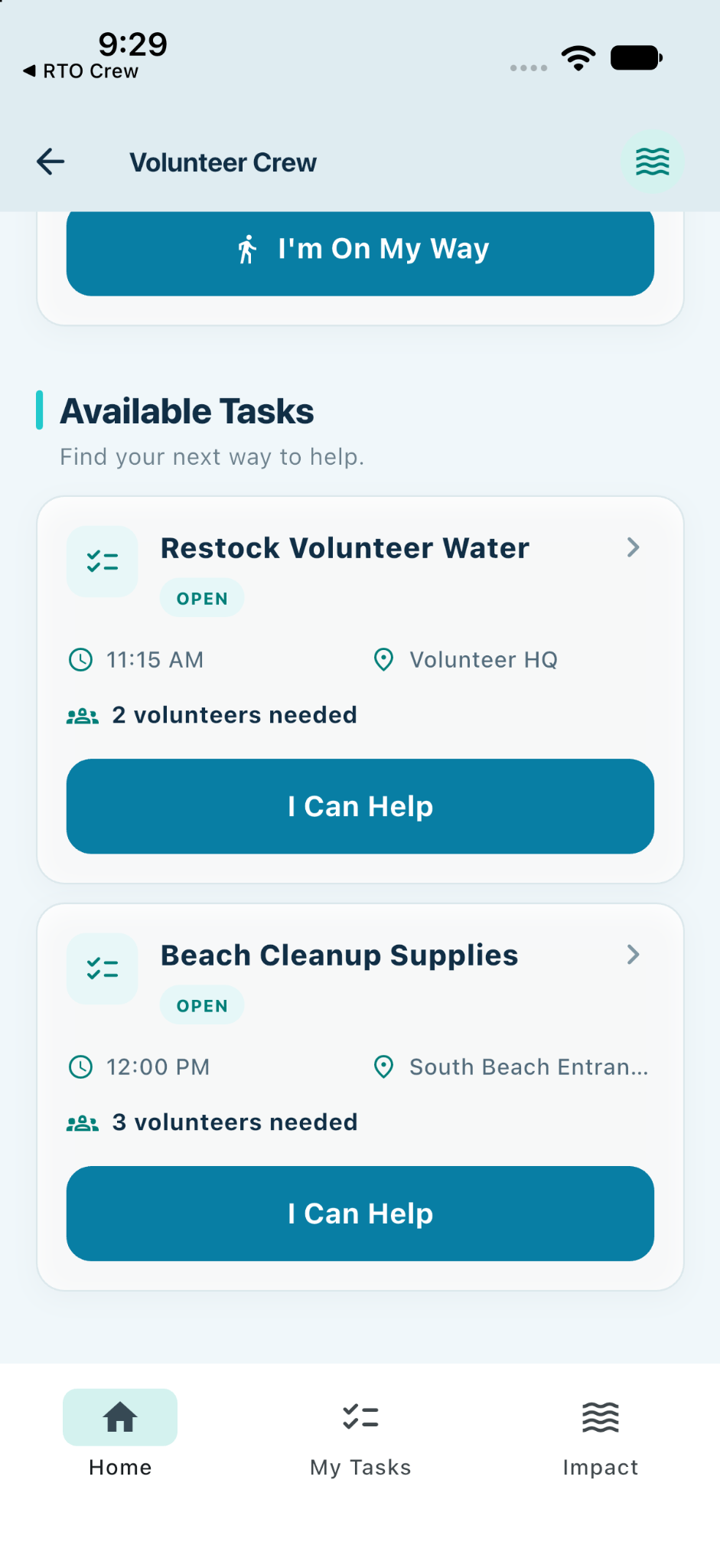
When you are ready to help, this section shows open tasks that still need volunteers.
What to do
- Review each card for the title, time, location, and volunteers needed.
- Tap I Can Help to join a task that fits your availability.
- After you join, the task becomes part of your My Tasks workflow.
VOLUNTEER
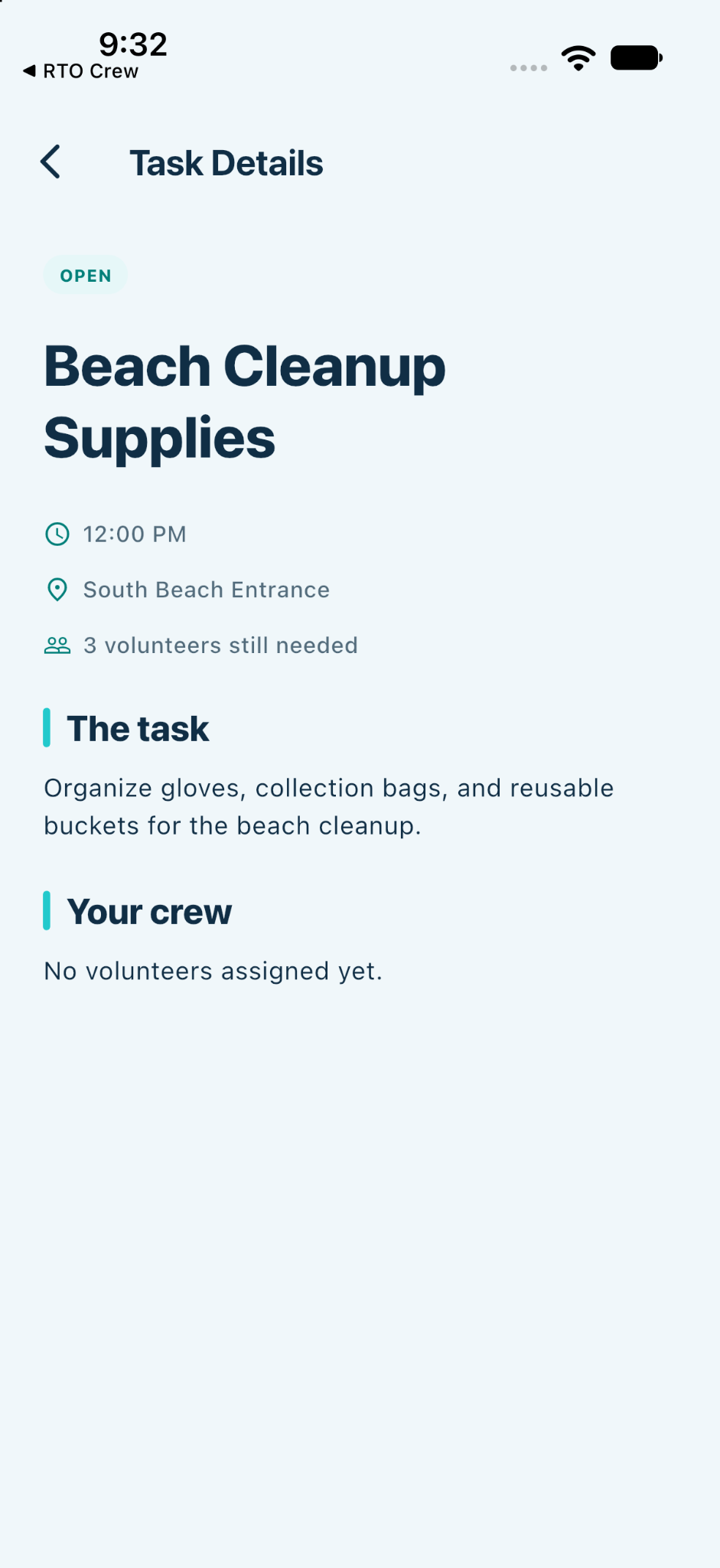
Task Details
Work the task with confidence
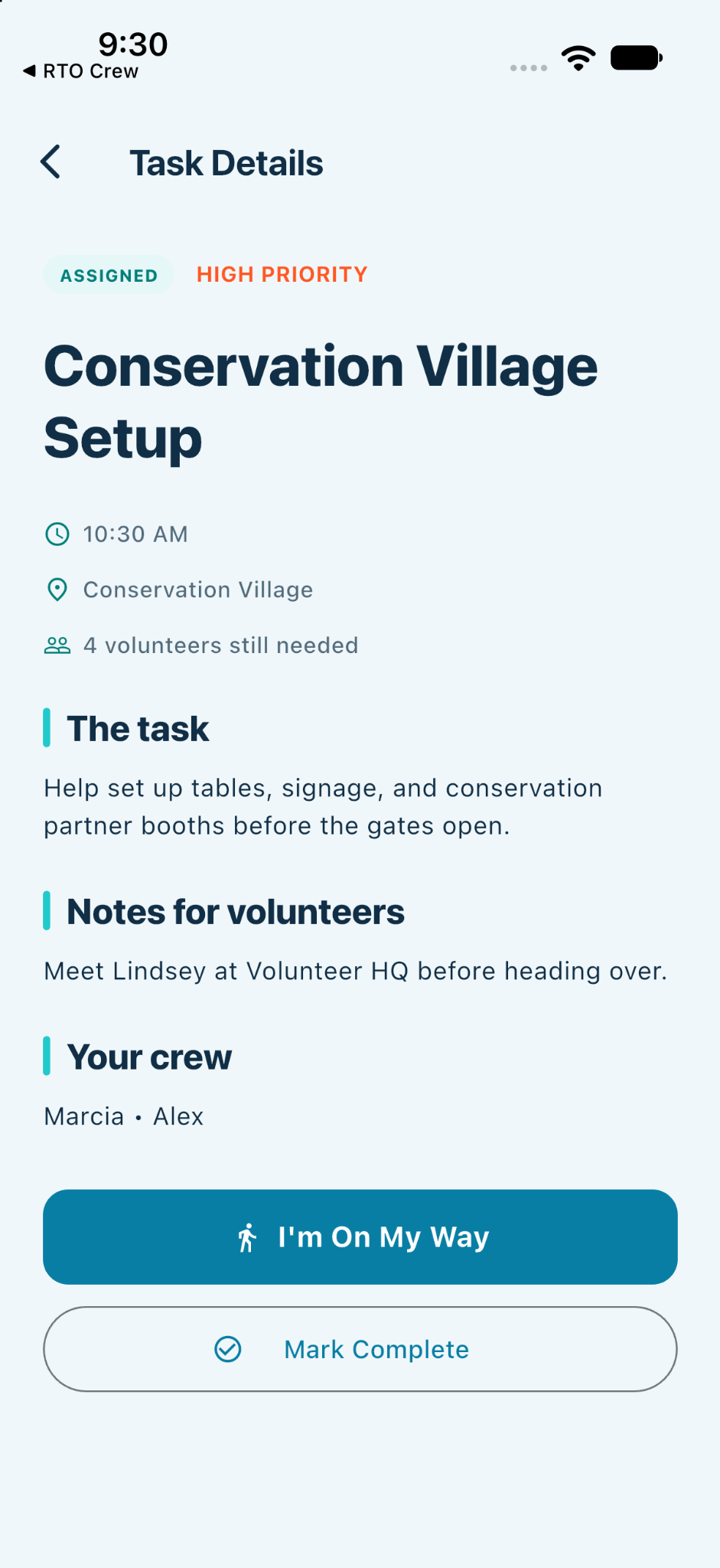
Use Task Details to review the work, see who is on your crew, and update your progress.
What to do
- Read the task, time, location, and notes so you know exactly where to go.
- Review Your crew to see who else is assigned.
- Tap I’m On My Way when you are heading to the task.
- Tap Mark Complete after the task is finished.
VOLUNTEER
My Tasks
Keep track of your assignments
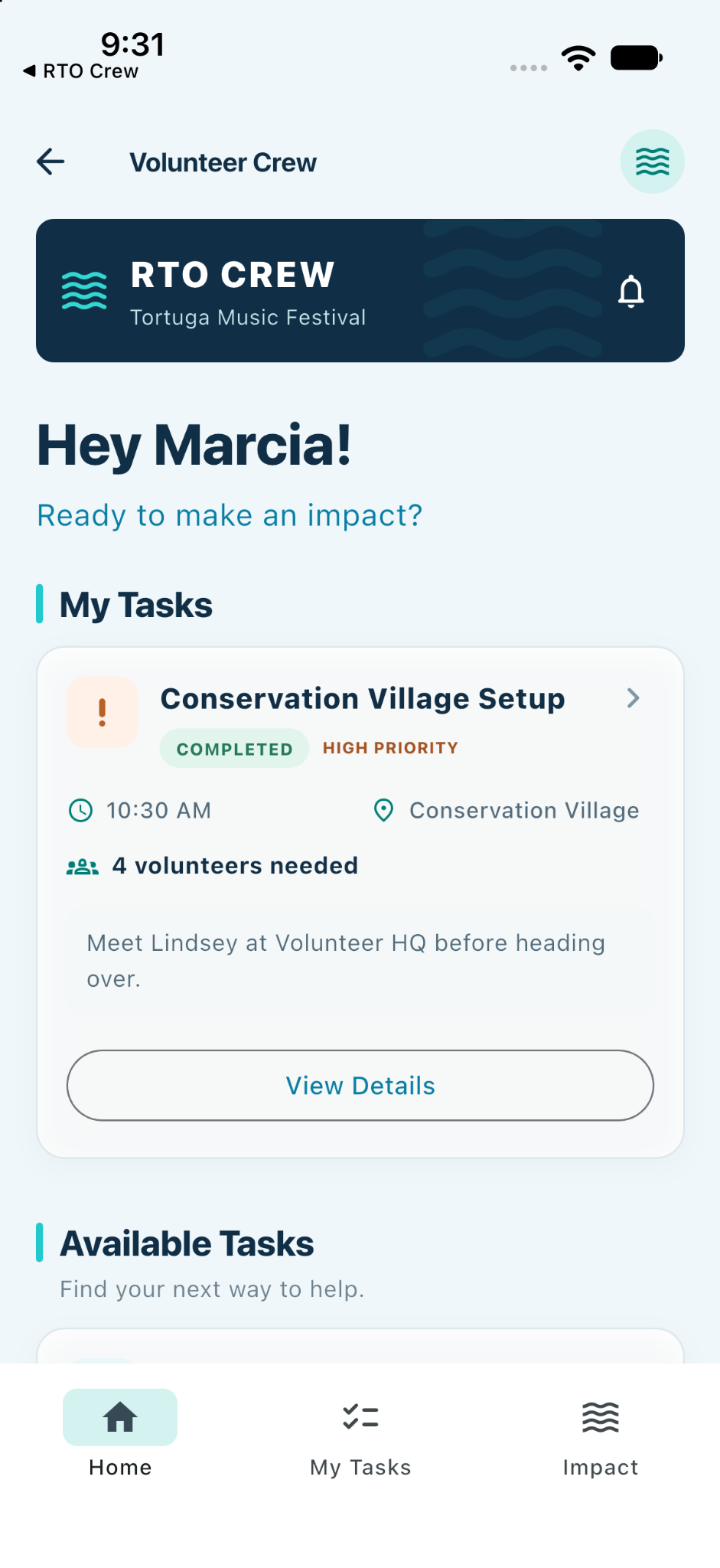
My Tasks keeps your personal assignments in one place so you can return to them quickly.
What to do
- Open My Tasks from the bottom navigation.
- Review the task card to confirm your assignment, notes, and status.
- Tap View Details to reopen the full task whenever you need it.
VOLUNTEER
Volunteer Impact
See the difference you made
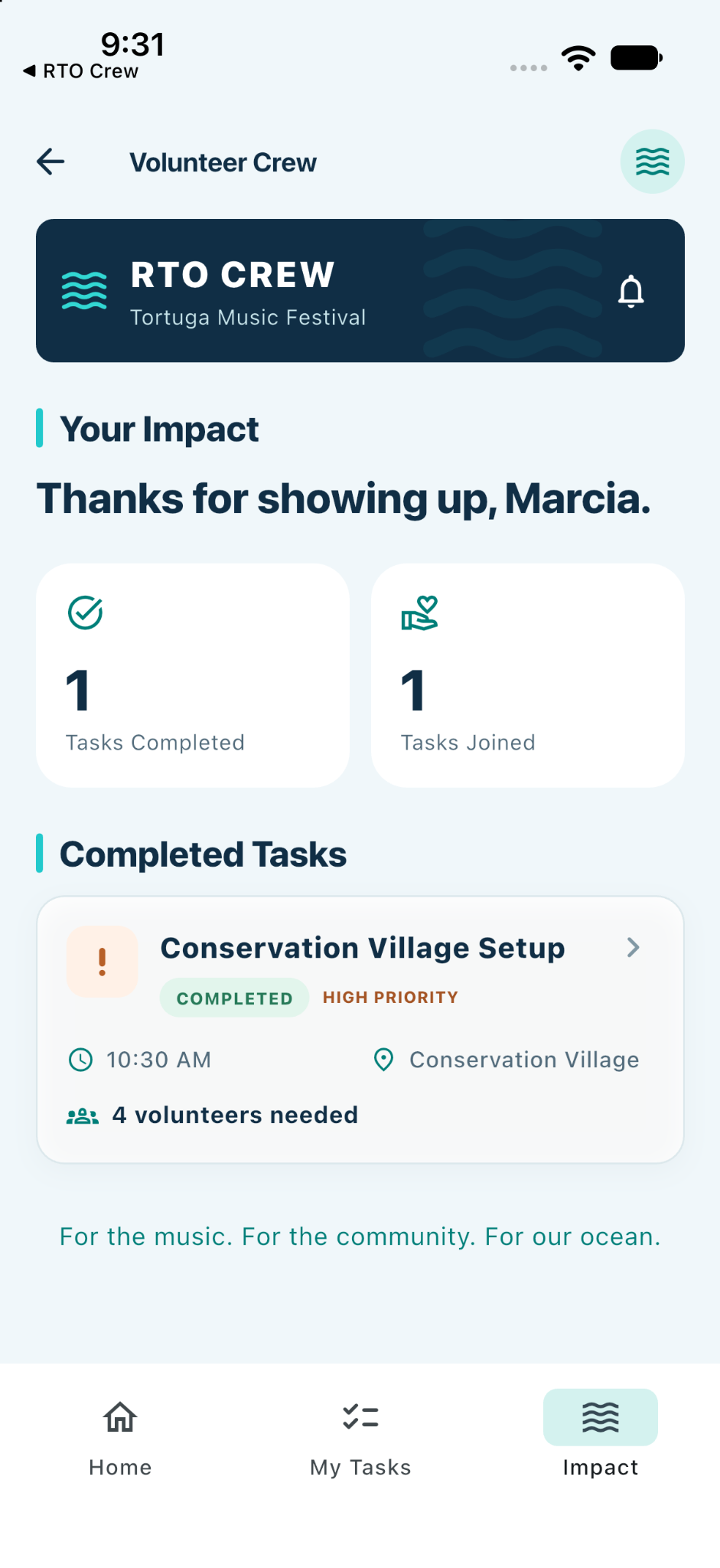
Impact gives volunteers a simple summary of how they contributed during the event.
What to do
- Review Tasks Completed to see how many assignments you finished.
- Review Tasks Joined to see how many opportunities you stepped into.
- Use the completed-task list as a quick snapshot of your contribution.
See the work. Create tasks. Monitor the crew.
RTO STAFF
Staff Dashboard
Monitor the crew in real time
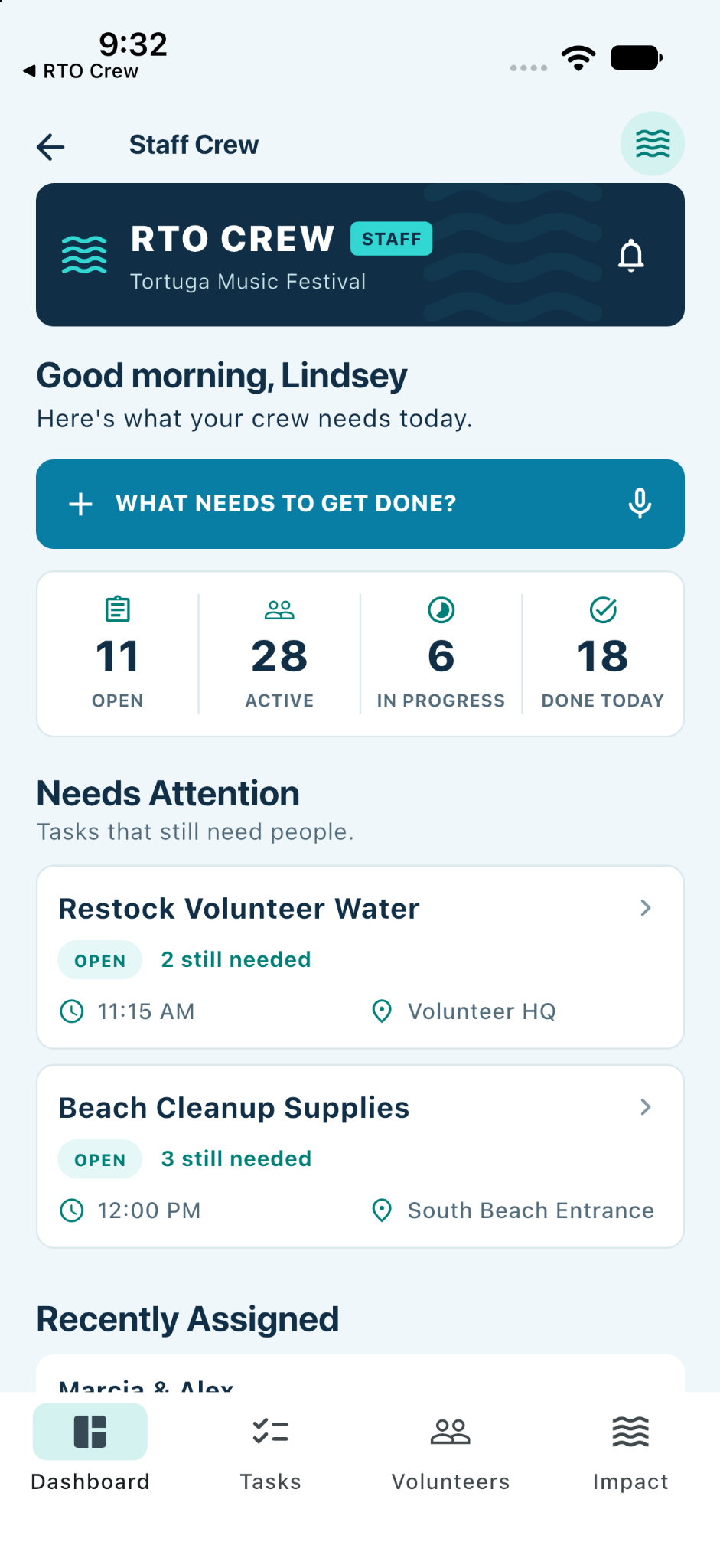
The Staff Dashboard is the main command center for leaders during the event.
What to do
- Check the summary counts for open work, active volunteers, work in progress, and completed tasks.
- Review Needs Attention for tasks that still need people.
- Review Recently Assigned to see current crew placements.
- Tap What Needs to Get Done? to open Create Task.
RTO STAFF
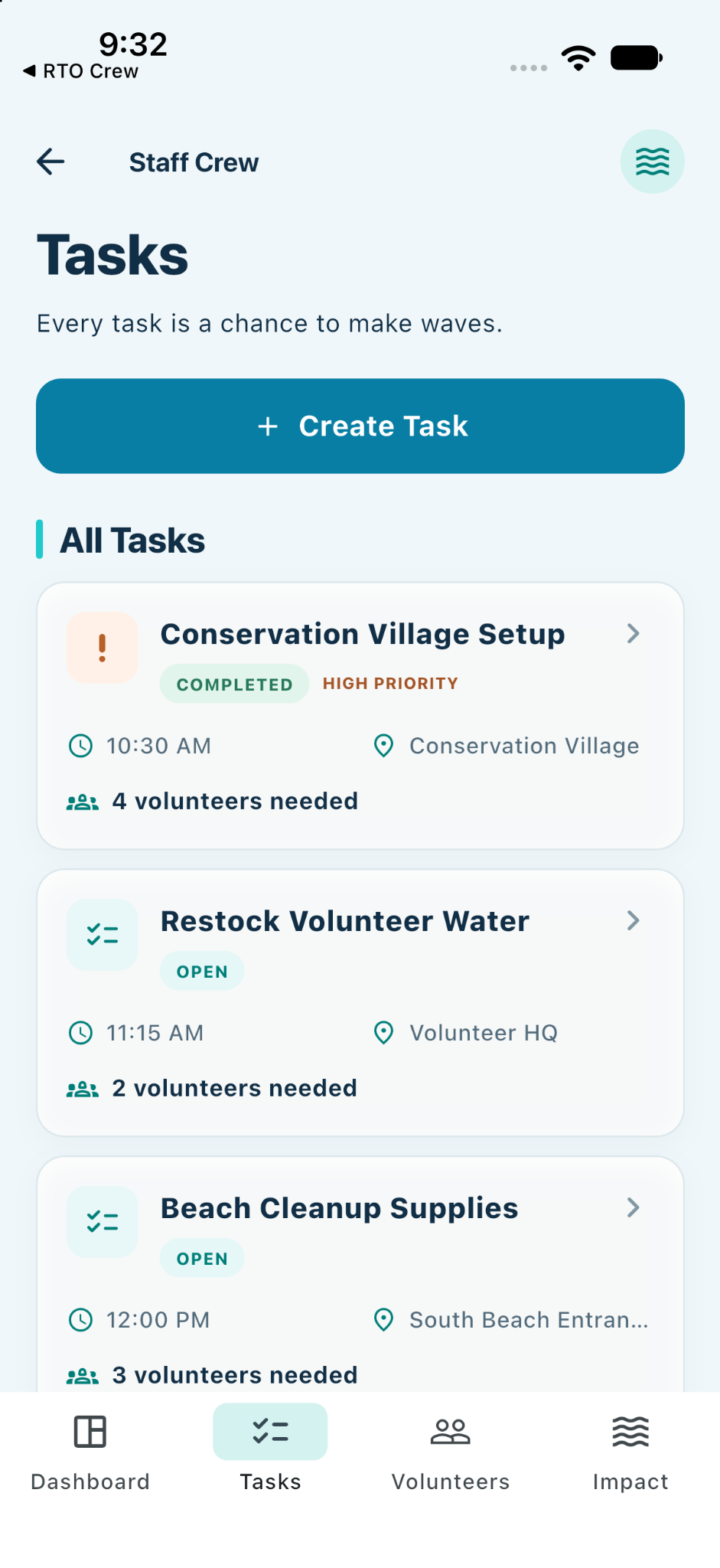
Staff Tasks
Review all work in one place
The Tasks screen gives staff a list of all work currently in the system.
What to do
- Tap Create Task to add a new assignment.
- Scan each task for status, priority, start time, location, and volunteers needed.
- Tap any task card to open its full details.
RTO STAFF
Create a Task
Set up the work clearly
Use Create Task to give volunteers the details they need before they start.
What to do
- Enter a short task title.
- Describe what needs to be done.
- Add the location and start time.
- Set the number of volunteers needed and priority.
- Add notes for volunteers, then create the task.
RTO STAFF
Volunteers
Check crew assignments
The Volunteers screen helps staff see who is working on what and where follow-up may be needed.
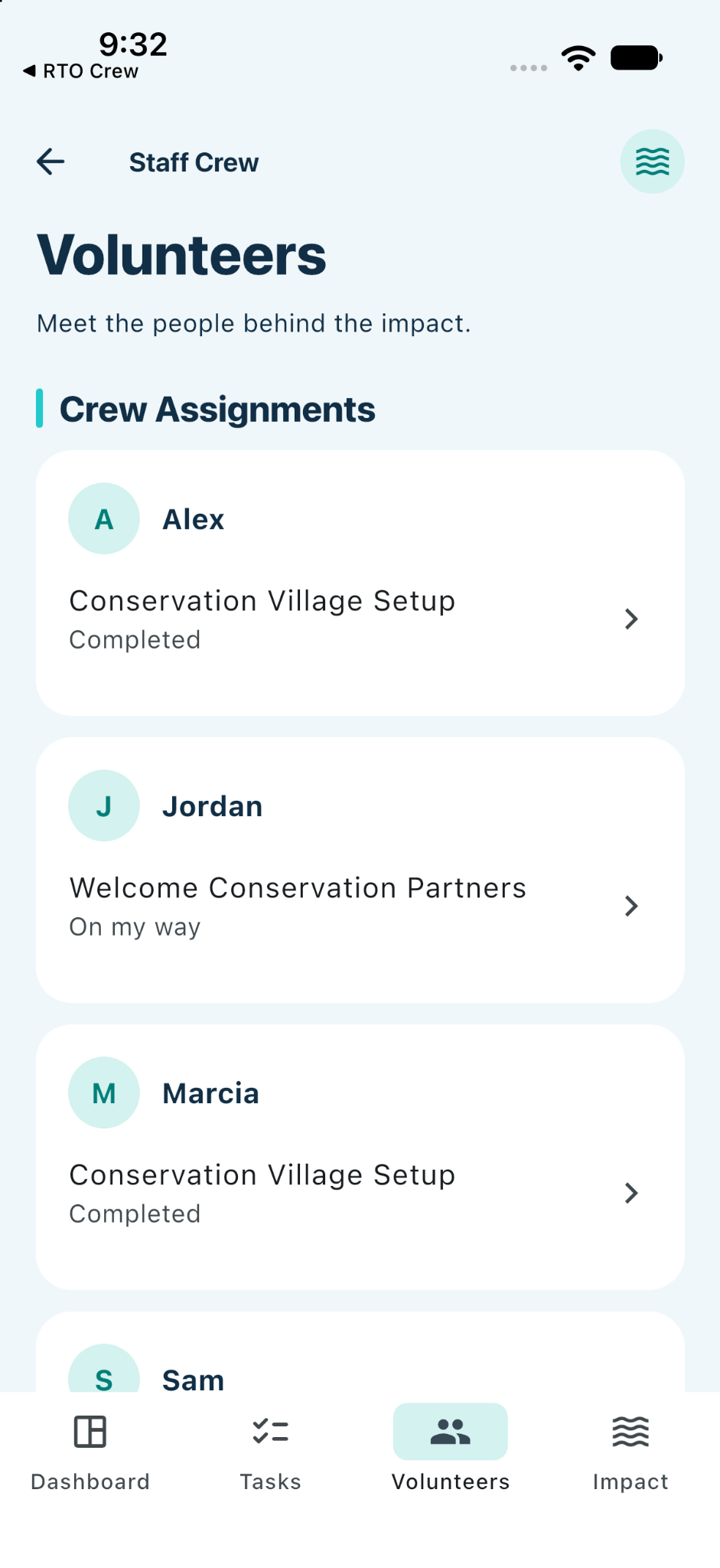
What to do
- Review the crew assignment cards to see each volunteer’s current task.
- Look at the status beneath each assignment to see whether the work is completed or on the way.
- Tap an assignment row to open the related task details.
RTO STAFF
Staff Impact
Review completed work
The Staff Impact screen gives leaders a quick view of completed work and overall crew activity.
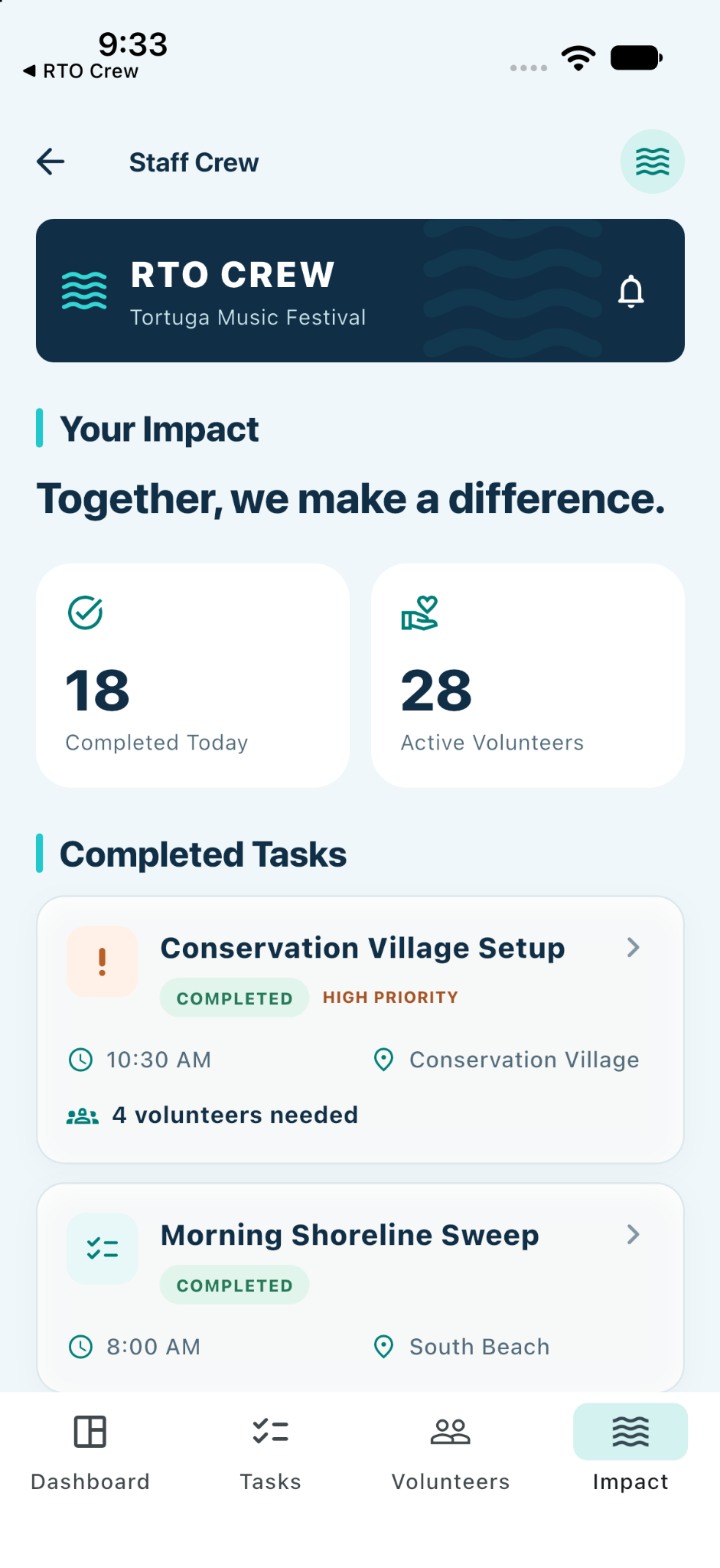
What to do
- Review Completed Today and Active Volunteers for a quick crew snapshot.
- Scan Completed Tasks to see finished work.
- Tap a completed task card to reopen its details.